First suspect
You are looking at the wrong GA4 property, data stream, or Realtime report view.
GA4 troubleshooting
If your test click does not appear in GA4 Realtime, do not assume the ad URL is wrong. Check the tag, consent, browser, property, and landing page before changing campaign links.
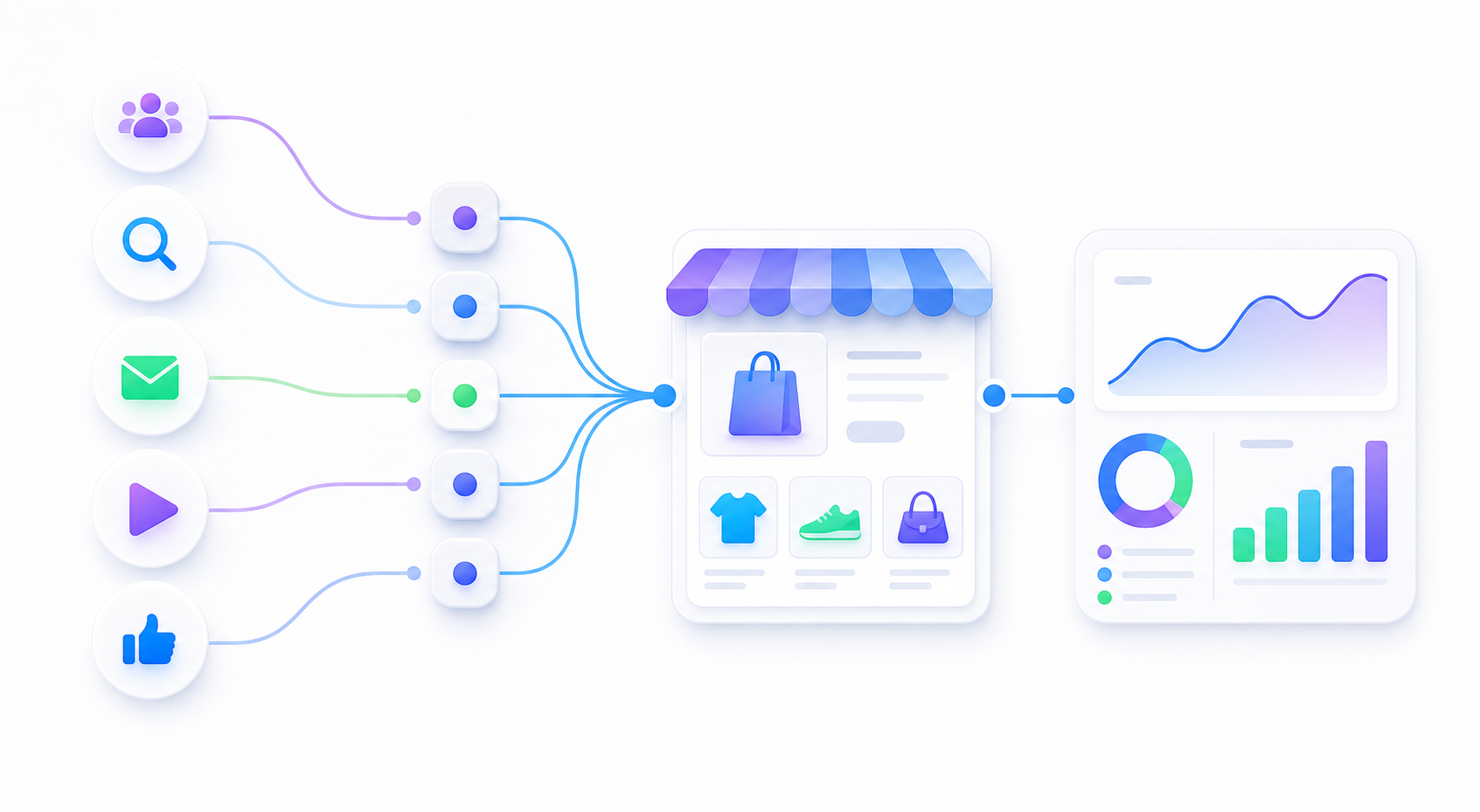
You are looking at the wrong GA4 property, data stream, or Realtime report view.
The GA4 tag is missing, delayed, blocked by consent, or installed on a different template.
Use one clean UTM URL, one browser, and one GA4 property while you isolate the problem.
| Symptom | Likely cause | Check |
|---|---|---|
| No users at all | Wrong property, missing tag, or blocker. | Confirm measurement ID and test with blockers off. |
| Home page appears, product page does not | Tag missing from one template. | Check product, collection, and landing-page templates. |
| Visit appears late | Consent, tag manager, or network delay. | Retest after consent and avoid changing settings mid-test. |
| Visit appears but not campaign values | URL parameters were stripped or duplicated. | Check address bar after redirects and inspect UTMs. |
GA4 Realtime FAQ
GA4 Realtime may not show a test click because you are looking at the wrong property or web stream, the GA4 tag is missing or blocked, consent has not been granted, a browser extension blocked analytics, or the landing page template does not include the tag.
Use one clean UTM URL, one browser, one GA4 property, and one click. Open Realtime before clicking, disable blockers for the test, confirm the landing page URL loads, and then check source, medium, campaign, page path, and events.
If the visit appears but campaign values are missing, the GA4 tag is probably firing and the next checks are the URL parameters, redirects, duplicate UTM keys, consent behavior, and whether the final page still has the query string in the address bar.
One property, one URL, one browser, one click. That is the fastest way to learn whether the issue is GA4, the store, or the campaign link.